-
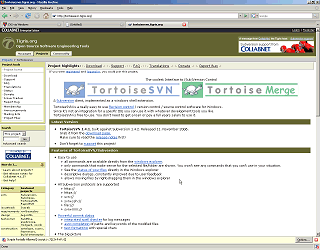
Download TortoiseSVN from: http://tortoisesvn.net/downloads
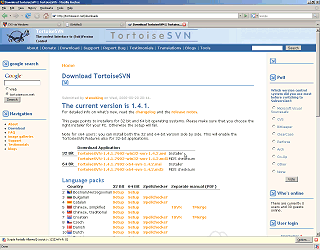
After consulting the suggestion(s) listed on the Download page, select a (32-bit
or 64-bit) of TortoiseSVN to download
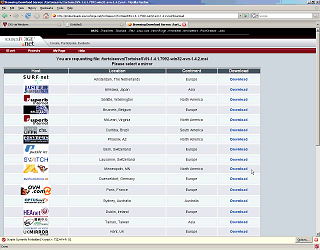
Select a download location from one of the SourceForge mirrors
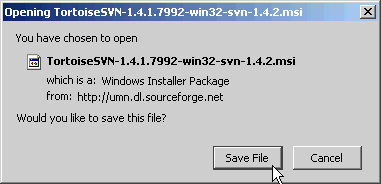
Save the file locally
Wait for the download to complete
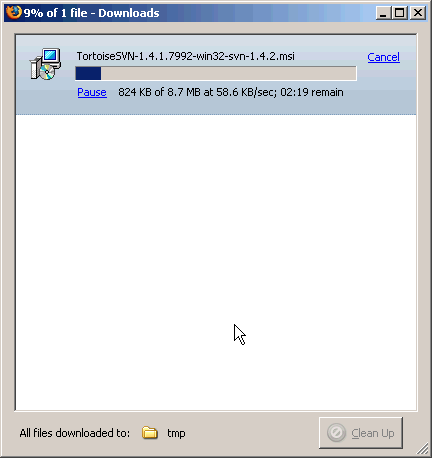
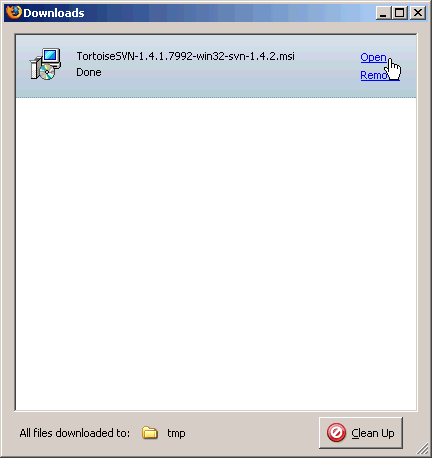
Whe the download has finished, click on Open
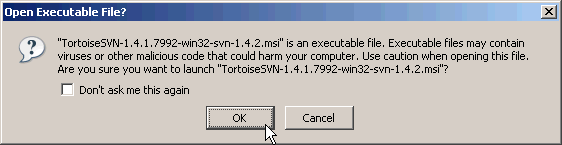
Click on OK in the warning window
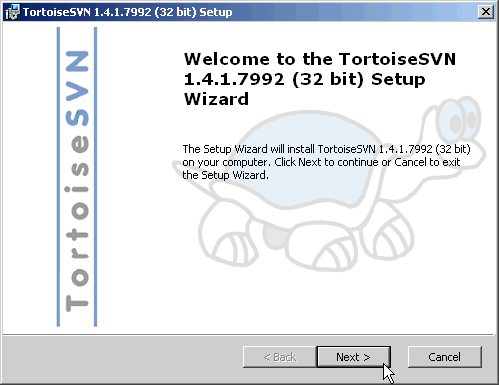
Click on Next in the TortoiseSVN Setup window
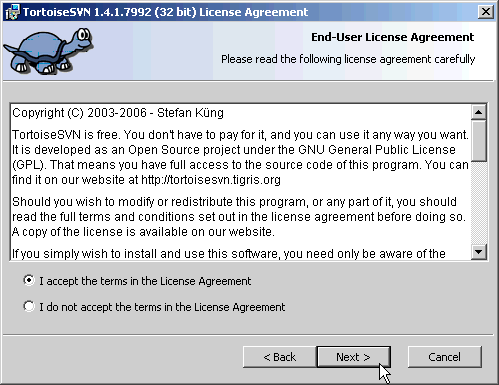
Read through the License Agreement - if you agree, select I accept
the terms in the License Agreement and click on Next
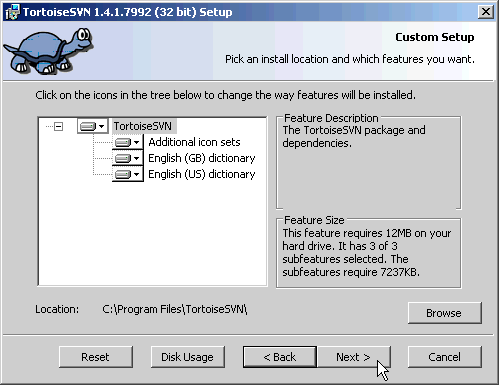
Click on Next in the Custom Setup window
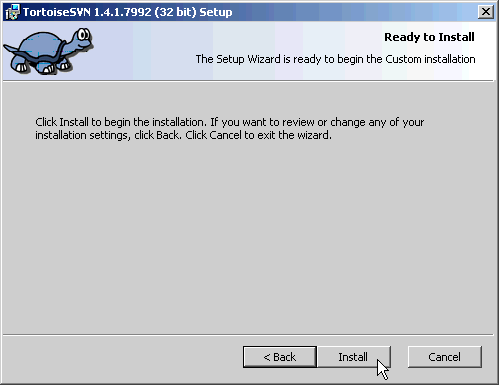
Click on Install in the Ready to Install
window
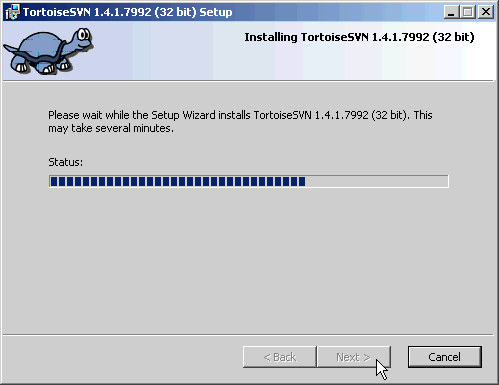
Wait for the install to complete
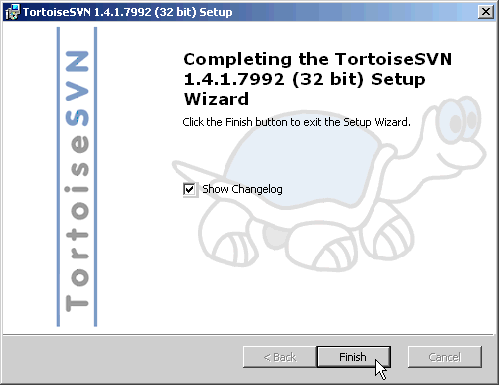
Click on Finish when TortoiseSVN is done installing
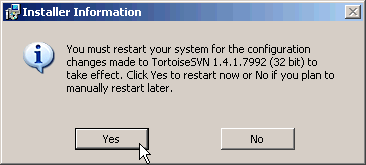
You will now need to reboot your computer; when ready to proceed, click on
Yes
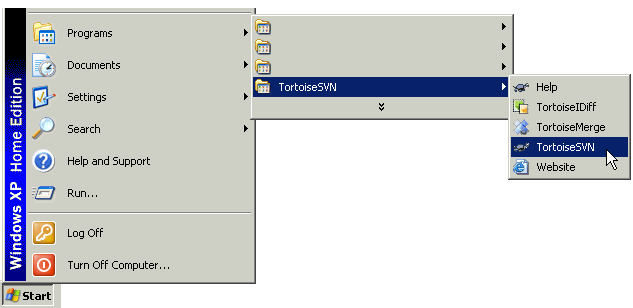
Launch TortoiseSVN by click on Start -> Programs
-> TortoiseSVN -> TotoiseSVN
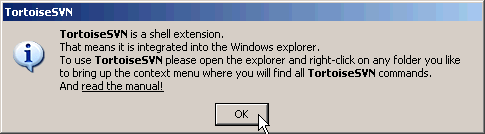
Click on OK in the alert Window
Windows Explorer should now be launched
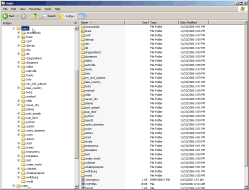
Create a directory (aka folder) to save and store all the maps (example name:
maps)
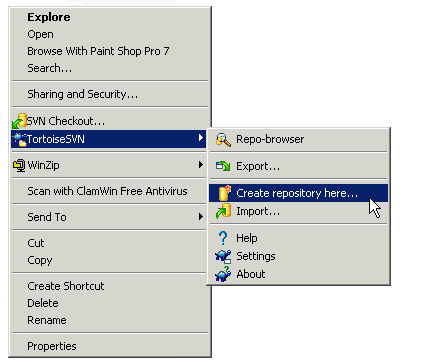
Right click on that newly created folder and select TortoiseSVN
-> Create repository here...
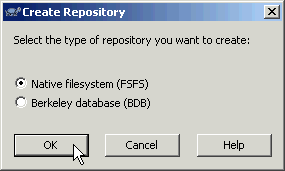
A new popup window will appear asking you to select the type of repository,
choose Native filesystem (FSFS) and click on OK
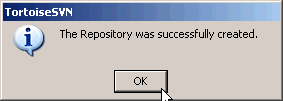
Another popup should appear showing that The Repository was successfully
created, click on OK
-
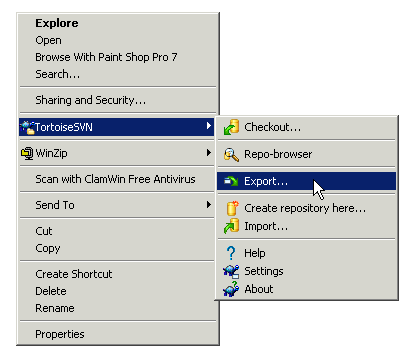
Right click on that same folder (ex: maps) and select TortoiseSVN
-> Export... - this will allow you to download the mapset
from SVN
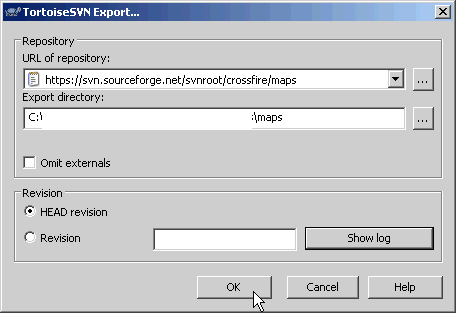
In the popup window, enter in the following information:
URL of the repository: svn co https://crossfire.svn.sourceforge.net/svnroot/crossfire/maps/branches/1.x
Export directory: </path/to/the/directory/you/created>/maps
Revision: HEAD revision
Click on OK
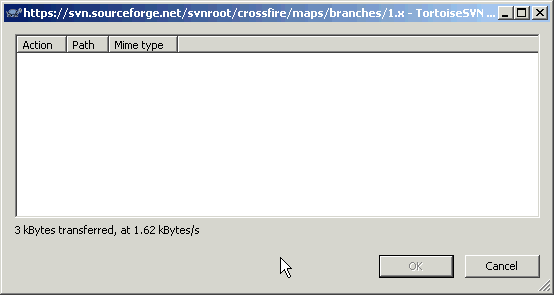
A new window will show the download progress and status, this may take a while
When the download is finished, click on OK
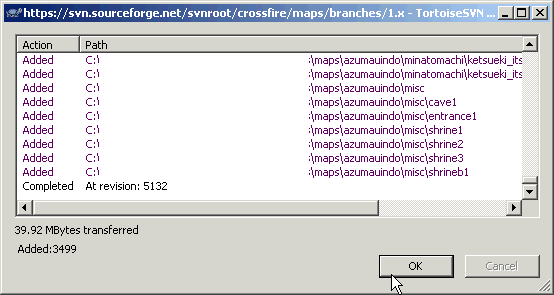
You have now used SVN to check out the latest branch version of the Crossfire
mapset